
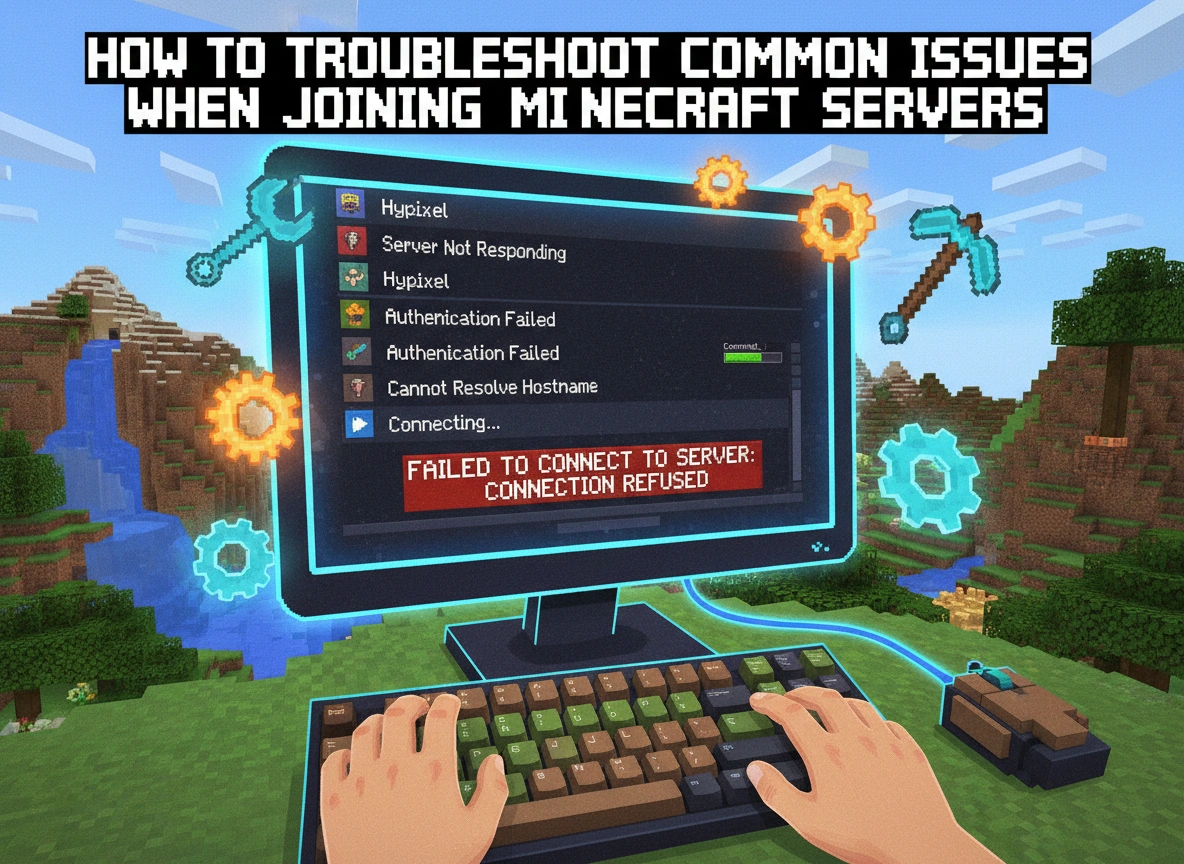
How to Troubleshoot Common Issues When Joining Minecraft Servers
Few things interrupt a great gaming session quite like a connection error. You boot up Minecraft, select multiplayer, and eagerly anticipate building with your friends, only to be met with a cryptic error message blocking your access. Server connection issues happen to everyone, from first-time block breakers to seasoned redstone engineers.
Understanding why these errors occur and knowing exactly how to fix them will save you hours of frustration. We have compiled a comprehensive guide to help you troubleshoot the most common issues you might face when trying to join a Minecraft server. Follow these step-by-step solutions to get back into the game.
Connection Timed Out or “Can’t Reach Server”
The “Connection Timed Out” or “Can’t Reach Server” error stands as the most frequent roadblock players encounter. This message simply means your computer tried to talk to the server, but the server never responded within the expected timeframe.
Why This Happens
This error typically stems from one of three sources: a typo in the server address, an internet connectivity issue on your end, or the server itself being offline.
How to Fix It
Step 1: Verify the Server Address
Double-check the IP address or domain name you entered. A single misplaced period or letter will send your connection request to a dead end. Pay special attention to the port number if the server uses one (for example, play.example.com:25565). If the server relies on a default port, you do not need to type the :25565 portion.
Step 2: Check Your Internet Connection
Ensure your local network functions properly. Try loading a web page or joining a different multiplayer game. If your entire connection seems slow or unresponsive, restart your modem and router. Unplug them from the power source, wait 30 seconds, and plug them back in.
Step 3: Flush Your DNS Cache
Sometimes, your computer holds onto outdated network data. Flushing your DNS can resolve hidden connectivity hiccups.
- Press the Windows key, type
cmd, and open the Command Prompt. - Type
ipconfig /flushdnsand press Enter. - Restart Minecraft and try joining the server again.
Step 4: Check Server Status
If your internet works fine and the address is correct, the server might be offline for maintenance or experiencing an unexpected crash. Check the server’s official website, Discord community, or social media pages for announcements. You can also use online Minecraft server status checkers to see if other people can reach it.
Outdated Client or Server (Version Mismatch)
Minecraft receives frequent updates, and multiplayer compatibility requires both the player and the server to run the exact same version of the game. If you see an error like “Outdated server! I’m still on 1.20” or “Outdated client! Please use 1.21,” you have a version mismatch.
Why This Happens
Server administrators often wait to update their servers until specific plugins or mods become compatible with the newest Minecraft release. Meanwhile, the default Minecraft launcher automatically updates your game to the latest version. This creates a gap where your game is too new for the server, or occasionally, too old.
How to Fix It
Step 1: Identify the Required Version
Read the error message carefully. It will explicitly tell you which version the server currently runs.
Step 2: Change Your Game Version
The Minecraft launcher makes it easy to switch between different versions of the game.
- Open the Minecraft Launcher.
- Click on the “Installations” tab at the top of the window.
- Click the “New Installation” button.
- Give the installation a recognizable name (like “Server Version 1.20.4”).
- Click the “Version” dropdown menu and scroll down to select the exact release version the server requires.
- Click “Create” in the bottom right corner.
- Return to the “Play” tab, select your newly created installation from the dropdown menu to the left of the Play button, and launch the game.
You Are Not Whitelisted on This Server
Seeing the “You are not whitelisted on this server” message means you have successfully connected to the server, but the server actively denied your entry.
Why This Happens
Many private servers, such as those run by friend groups, content creators, or tight-knit communities, use a whitelist. A whitelist acts as a digital VIP list. If your specific Minecraft username does not appear on that list, the server will not let you join. Administrators use this feature to prevent griefing and manage server capacity.
How to Fix It
Step 1: Find the Community Hub
Since this is an administrative block rather than a technical error, you must request access. Look for the server’s application process. This usually happens on a dedicated Discord server, a subreddit, or a community forum.
Step 2: Submit an Application or Request
Follow the server’s specific instructions for joining. You may need to fill out a short application, read the server rules, or simply ask an administrator to add your username.
Step 3: Verify Your Username
When asking for whitelist access, ensure you provide your exact Minecraft username, complete with correct capitalization. If you recently changed your Minecraft name, you must inform the server administrators so they can update the whitelist.
Firewall and Antivirus Blocking Connections
Sometimes your computer acts a little too protective. If your game immediately fails to connect to any multiplayer server, your firewall or antivirus software might be blocking Java from accessing the internet.
Why This Happens
Minecraft runs on Java (for the Java Edition). When you launch the game for the first time, Windows usually prompts you to allow Java to communicate over private and public networks. If you accidentally clicked “Cancel” or if an antivirus program flagged the connection as suspicious, Minecraft cannot send or receive the data necessary for multiplayer.
How to Fix It
Step 1: Allow Java Through Windows Defender Firewall
- Press the Windows key and type
Firewall & network protection. - Click on “Allow an app through firewall.”
- Click the “Change settings” button at the top right (you need administrator privileges for this).
- Scroll down the list and look for “Java(TM) Platform SE binary.” There might be multiple entries.
- Ensure the checkboxes for both “Private” and “Public” are checked for all Java entries.
- Click “OK” at the bottom to save your changes.
Step 2: Temporarily Disable Antivirus (For Testing)
If adjusting the Windows Firewall does not work, third-party antivirus software might be the culprit. Temporarily disable your antivirus program for a few minutes and try connecting to the server. If the connection succeeds, you know the antivirus is blocking the game. You will need to dig into your specific antivirus settings to add an exception or exclusion for Minecraft and Java. Remember to turn your antivirus back on once you finish testing.
Failed to Verify Username or Invalid Session
The “Failed to verify username” or “Invalid session” error message points to an authentication problem between your game and the official Minecraft account servers.
Why This Happens
When you launch Minecraft, the launcher logs you into your Microsoft account and generates a temporary session token. If you leave the launcher open for a long time, play on a different computer, or if the authentication servers experience an outage, this token expires or becomes invalid. The multiplayer server checks this token to ensure you own a legitimate copy of the game. If the token fails the check, the server rejects your connection.
How to Fix It
Step 1: Restart Your Game and Launcher
The easiest and most common fix involves completely closing the Minecraft game window and the Minecraft Launcher. Reopen the launcher and start the game again. This forces the launcher to generate a brand-new, valid session token.
Step 2: Log Out and Log Back In
If a simple restart fails, you need to manually refresh your credentials.
- Open the Minecraft Launcher.
- Click on your profile name or icon in the top left corner.
- Select “Log Out.”
- Log back in using your Microsoft account credentials.
- Launch the game and try joining the server.
Step 3: Check Mojang Authentication Status
If logging out and back in does not solve the problem, the issue might lie entirely on Microsoft’s end. Search online for “Minecraft authentication server status” to see if there are widespread outages affecting player logins. If the servers are down, you simply have to wait until the engineers fix the issue.
Mismatched Mods or Modpacks
Players who venture beyond vanilla Minecraft often encounter a unique set of connection issues. If you try to join a modded server and receive an error mentioning missing registries, missing mods, or mismatched mod versions, your game files do not align with the server’s files.
Why This Happens
Modded servers require you to have the exact same modifications installed locally as the server runs locally. If the server runs a specific modpack, you need that exact modpack. If the server updates a single mod within that pack, you must also update that specific mod.
How to Fix It
Step 1: Use a Dedicated Launcher
Managing individual mod files manually causes endless headaches. Use a specialized launcher like CurseForge, Prism Launcher, or FTB App. These tools allow you to search for the specific modpack the server uses and install the correct version with one click.
Step 2: Match the Modpack Version
Servers often state which version of a modpack they run (for example, “Better Minecraft v1.5”). Ensure your launcher is set to download and play that exact version. If your launcher automatically updated the pack to v1.6 but the server still runs v1.5, you will fail to connect.
Step 3: Check Client-Side vs. Server-Side Mods
Some mods, like minimaps or performance boosters (OptiFine, Sodium), are “client-side” and don’t need to be on the server. However, mods that add new blocks, items, or creatures must be present on both ends. If you manually added extra content mods to your local folder that the server does not recognize, the server will reject your connection. Remove any unapproved mods from your folder before joining.
previous post
